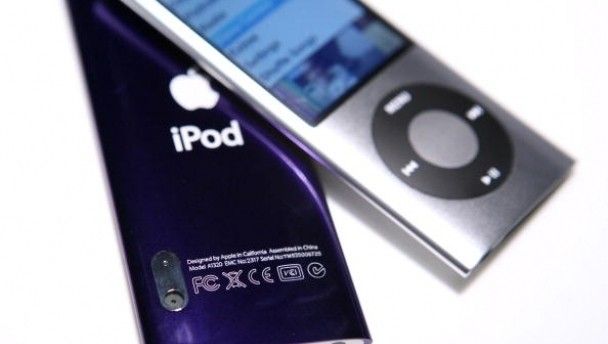
No matter how good you think the range of music on your iPod is, you’re always likely to come across a friend of yours whose iPod has a better range of artists or a more extensive library than you have, it’s sod’s law.
iPod users, your humble author included, have been loathe to let their precious device near any computer bar their own for fear that their painfully-assembled library will be deleted, but it is possible to upload music from another user’s iPod onto your own computer, providing you have iTunes of course.
The hard part is persuading your mate to part with their iPod in the first place. If you can achieve that, the next part’s relatively easy. Here’s how it’s done.
Connect the iPod to your computer via the USB cable. iTunes should open automatically and ask if you want to sync the iPod with the iTunes library on your computer. It is imperative that you click NO.
Open ‘My Computer’ and locate your iPod drive. If you are a Vista user, open it and click on ‘organise’. Follow this by selecting folder and search options tab, then click on view and show hidden files and folders. If you are an XP user, open the iPod drive and click tools rather than organise and then repeat the process as detailed above. Then click apply.
A folder should appear on your screen called iPod control. This folder will contain all the details of your iPod such as contacts, notes, calendar, music etc. Open it up and open the music folder. Create a new folder on your desktop and copy all of the files from iPod control into the new folder.
Following this, you can put the new folder into your iTunes application under the heading library – music. It should now be safe to sync the iPod to the new computer without losing any of the contents of the iPod…fingers crossed!